Code and preview
Review what an agent changed, commit and land its branch, and look at its work running.
Reach the tabs
Select an agent in the office. The tabs above its panel are icons: point at one (or tab to it) to see its name, what it is for and the keys that go to it. In order they are Chat, Terminal, Code, Agent Memory, Library, Workflow (only with Workflows on, see Workflows), Traces and Preview. A dot on Workflow means a run is open, Traces shows how many messages there are (a broadcast counts once), and a dot on Preview means a dev server of that agent is running. Clicking a file name in the chat opens an HTML page or PDF in Preview, a code file of the branch in Code, and anything else in a tab of its own with Open with default app.
Review a branch
Open Code, then Changes. The list shows what the agent changed since its branch left the base branch: commits, uncommitted edits and new files. Click a file to see its diff. ↻ refreshes the list.
Above the diff, Unchanged code is Fold (the default) or Show. Folded, only the changes and a few lines around them are drawn, and a row such as "49 hidden lines" stands for the rest: click it, or drag its edge, to open more. Context (3, 5 or 10) is how many lines stay around each change. Both choices are kept for every file. Press ⌘⌥U (Ctrl+Alt+U) to switch between Fold and Show; F1 in the diff offers Show all hidden lines. A new file has nothing to fold.
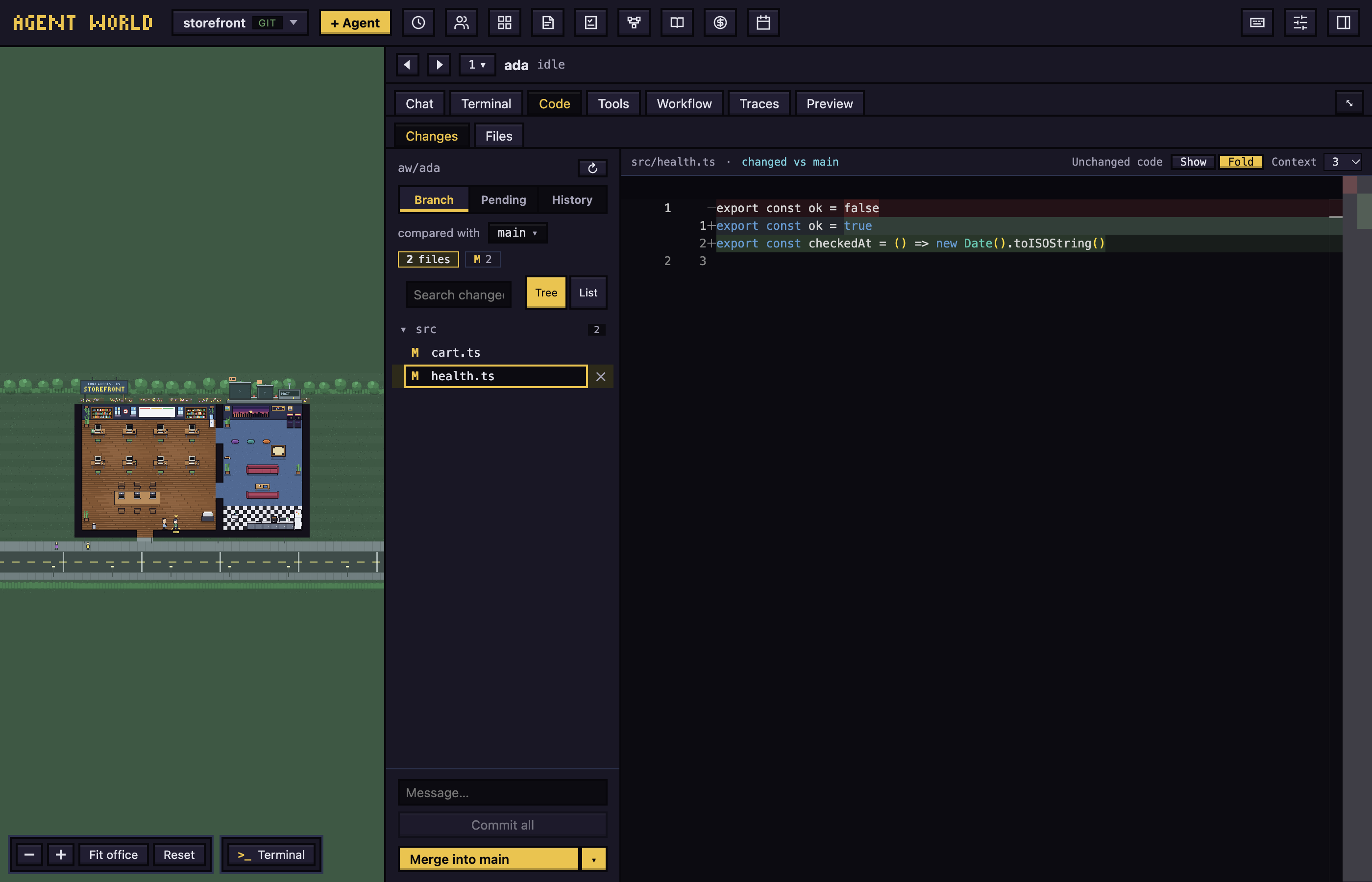
Switch the column between:
- Branch: everything compared with the base.
- Uncommitted: what is not committed yet (Pending in a narrow column).
- History: the branch's commits.
In Branch:
- To change the base, click the branch after compared with and pick another. This only changes the comparison and where merges and pull requests go.
- To narrow the list, use the A, M and D chips or Search changed files…. Tree and List change the layout.
- To discard a file's uncommitted changes, click its ✕. It asks first.
In Uncommitted, files are grouped as Staged, Changes and New files, with Stage all or Unstage all on each group and +, − and ✕ on each row. In History, choose Since main or All, search by message, author or hash, and click a commit for its files and diffs.
Commit
To commit everything, type a message in Message… and click Commit all. The agent's plan file (.agent-world/plan.md) is left out. To commit only some files, stage them in Uncommitted; the button then reads Commit N staged.
Browse and edit files
Files lists the worktree's files. In a folder that is not a git repository the Code tab is just this list, with one line saying there are no changes to show; the folder is read directly, leaving out .git, node_modules, build folders and caches, up to 5,000 files. Click one to open it in a tab, edit it, and click Save (⌘S). Edits go straight into the agent's worktree. A Markdown file has Preview and Source to read it formatted or as text, and so does an HTML file, which shows as the page the file makes (as last saved, with its own stylesheet and pictures; press Save to see an edit); this is not the Preview tab. A PDF opens as a PDF with Open in Preview, not as text, and cannot be edited here.
Reveal in Finder
Right-click a path anywhere it is shown and choose Reveal in Finder: a file or folder in Files or Changes, an open file's tab, the Code and Terminal tabs (the agent's folder), a file link or tool card in the chat, a folder an agent names (it is a link; a click reveals it), the profile card, a skill, a project, an attachment, an account's folder in Settings, and a local file in Preview.
Send code to the agent
Select code in a diff or a file, then click Ask and the agent's name, or press ⌘L (Ctrl+L), or ⇧⌘L (Ctrl+Shift+L), the key that does this in every place that offers it. The code goes into that agent's message box as a chip. Chips waiting there show under the editor as In the message.
Land a branch
- Merge into main (the base's name replaces
main) merges the branch into your own checkout after a question. It refuses unless that checkout is on the base branch with nothing uncommitted. On a conflict it aborts and leaves the base unchanged. - Push & open PR, in the ▾ menu More ways to finish, pushes to
originand opens a pull request. It needsgh, the GitHub command line tool.
To land through the plan and review gates, ask the agent to merge: git holds the merge until the gate is met or you Set aside what holds it (see Workflows). Merge into main applies none of the gates and merges as soon as you confirm.
An agent that works directly in your folder has no branch. Code then shows a note instead of Changes and Files.
Preview
Preview shows web pages beside the chat:
- A dev server the agent started. Its page appears on its own when something answers at the address.
- A page file on your computer. HTML pages an agent opens in your browser also show here, unless you turned off Open pages in the app preview in Settings.
- A site on the internet.
To open something, type 5287 (for localhost:5287), localhost:3000/app, example.com or a path like ~/design/index.html in the address bar, or pick from Running now and Recent. ⌘-click (Ctrl-click) a link in the chat to use your browser instead.
The first time a site on the internet opens, Preview asks Open here or In my browser. Pages there cannot reach your files or Agent World, use the camera, location or notifications, or download files.
The toolbar has Back, Forward, Reload, Screen size (Desktop, Tablet, Mobile), Select element (click something on the page to send it to the agent as words and a picture) and Open in browser.
To zoom the page, pinch on the trackpad (the page zooms like on a phone), or press ⌘+, ⌘− and ⌘0 (Ctrl elsewhere) while the page has the focus: the page zooms in steps and ⌘0 puts it back, and the rest of the app keeps its size.
Terminal, Agent Memory, Traces, History
- Terminal is the agent's own terminal; keys go straight to it. A selection offers Add selection to message.
- Agent Memory holds the notes every agent in the project shares: agents save them with
remember, and you can add your own at the top. Notes sit under day headings; pick a name to see one writer's notes, or tick Hide finished-task log to leave out the lines the office saves when a task closes. Forget removes one. MCP servers and plugins are managed in the terminal (/mcp) and in Settings. - Traces lists messages agents sent each other, under day headings, each as a card with a line for the agent it went to and what became of it (delivered, queued while that agent is busy, or dropped). Pick an agent to narrow it to that agent's messages, or Dropped only for the ones that did not arrive. Click a message to read all of it.
- Broadcast. An agent can tell every other agent of its project at once with one
broadcast_messagecall, instead of messaging them one by one. It shows as one card in Traces with a line for each agent, and as a card with a wave mark in the chat of the agent that sent it and of each that got it (the receiving card says who else was told, and that the reply goes to the sender only). Agents answer as they finish, with their ordinary messages. An agent that is asleep is not sent it and is marked Asleep with a Wake button, since only you can wake it; wake it and the sender can send again. An agent that has had six messages from the sender in ten minutes is marked Not sent. - History in the top bar opens Past conversations for the open folder. Click one to continue it as a new agent.
Next: Workflows