Settings and updates
Where to change how Agent World alerts you, what new agents start with and where each program is, and how the app finds a newer version.
Open Settings
Click Settings (the gear) in the top bar. The list on the left has three groups:
- Office: General, Features, New agents, House rules.
- Programs: Providers, Accounts, Model by job.
- App: Message box, Updates, Setup. Message box appears only when a ready program has a connection to make (Antigravity).
Each change is saved as you make it. Press Close when you are done. The preferences live in ~/.agent-world/preferences.json.
General
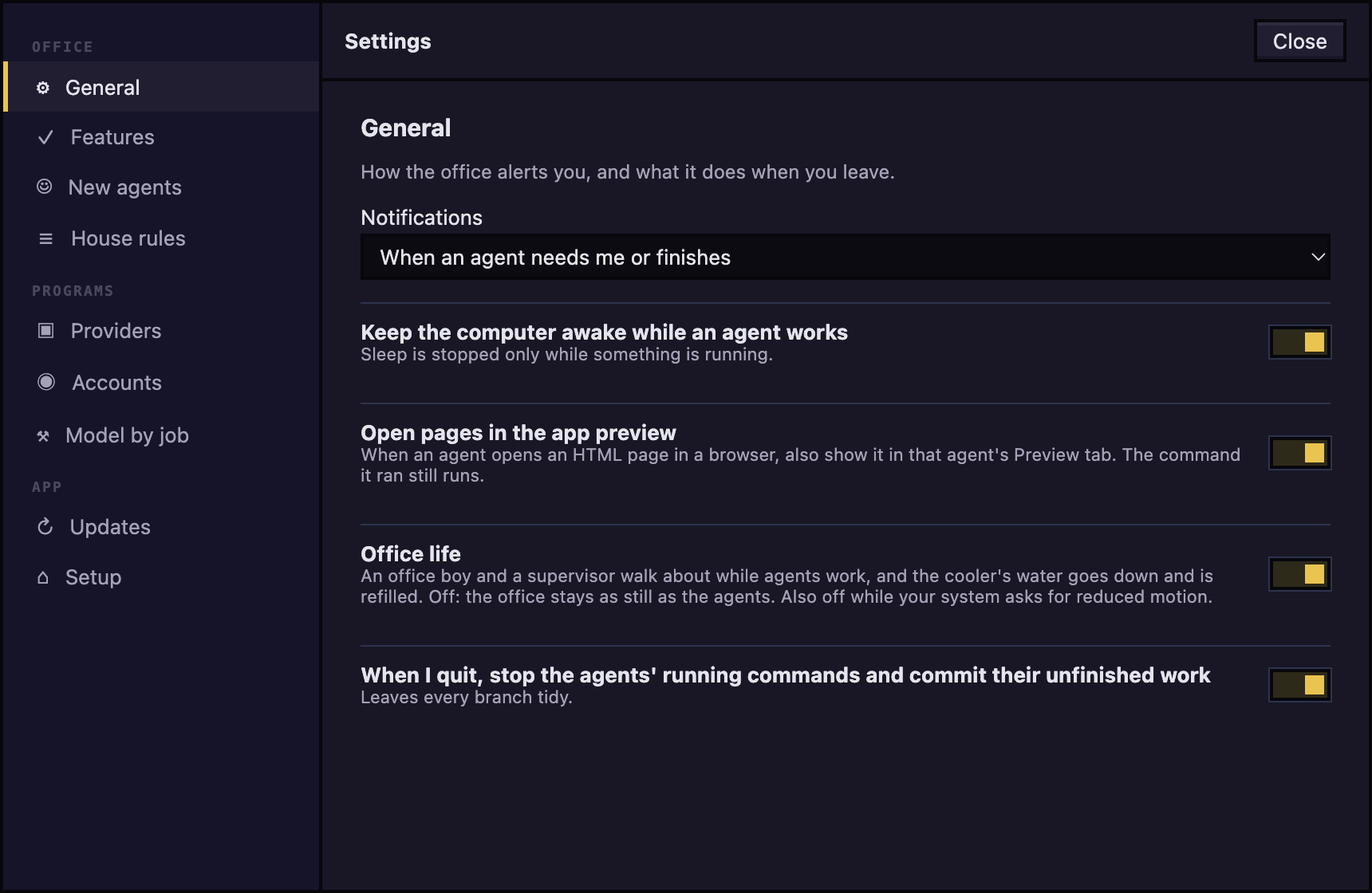
To choose when you are alerted, set Notifications to When an agent needs me or finishes (the starting choice), Only when an agent needs me, or Never. The switches below it keep the computer awake while an agent works, show pages an agent opens in its Preview tab, and, when you quit, stop the agents' running commands and commit their unfinished work. All three are on at first.
Features
Features change what agents are told and add text to messages, so each switch shows what it costs.
- Library and playbook: on at first. See Library and playbook.
- Track every request as a todo: off at first. See Todos.
- Workflows: off at first. It adds the Workflow tab and the Workflows button in the top bar. Turning it off while runs are open asks you to choose Let them finish, then hide, Stop them now or Cancel. See Workflows.
- Economy, Balanced (the starting level) and Max: how much care a workflow takes. The line under the choice says what each does.
The library and todo switches take effect for agents started from now on and for each new message.
New agents
This is what the hire form opens with; each hire can still change it. Set the Model, the Permissions, and Work in my folder directly (no branch). Under Subagents, Levels deep (starting value 2) and At once under one agent (starting value 3) keep a chain of subagents from running away.
House rules
Text typed under Added to every agent is added ahead of every agent's own instructions when it starts or wakes, for every program.
Providers
Each program has a card saying whether it works here (ready, not signed in or not found). Type a path in Location only when the app cannot find the program on its own; it applies to agents started after you set it. Re-scan looks again.
Accounts
For Claude Code, you can sign in more than one subscription and move agents between them without signing in again. Your own login is listed as This computer. It is only changed if it is signed out and you sign it in from here.
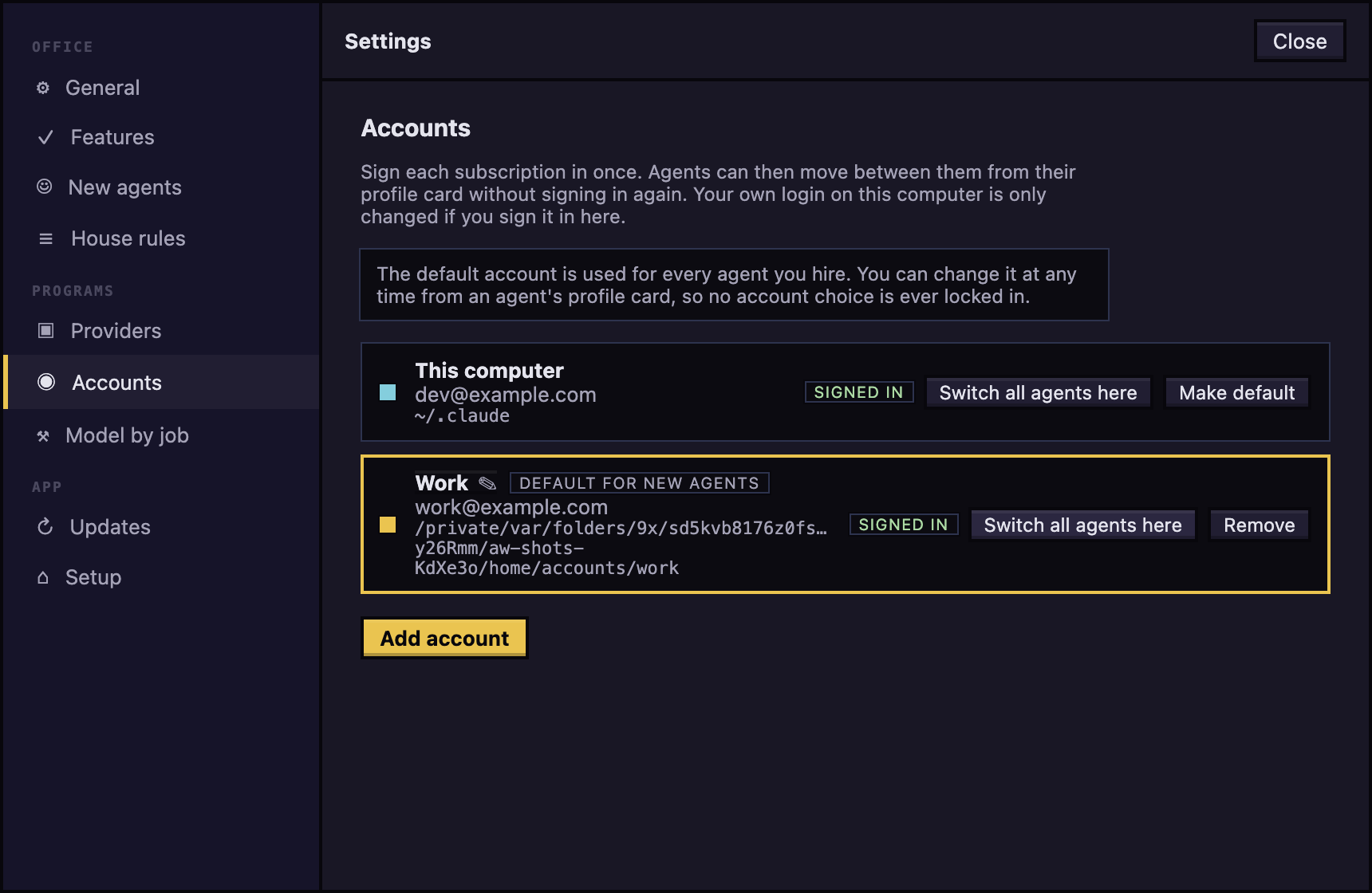
To add an account: press Add account, type a name (only a label for you), press Continue to sign in, finish in the terminal and your browser, then press I have signed in: check.
Each account has Sign in (when it needs one; on This computer the Sign in needed tag is the button), Make default and Remove. Click an account's name to rename it: Enter saves and Esc cancels. Only the label changes; the folder, the sign-in and the agents on it stay. This computer (a program's own login) is renamed the same way. The default account is used for every agent you hire, and the hire form shows an Account choice once you have added one.
A signed-in account also has Switch all agents here, which is always available. It lists the agents by project with a box for each. Every agent not on the account is ticked to begin with; tick or untick agents, or a project's box for all of its agents, or use all, none and only those not on the account. The ticked agents that are working now are stopped, moved, then sent continue, and the idle or asleep ones are moved quietly. Stop them, switch and continue does it. A ticked agent that is already on the account is restarted on it, which puts right one whose process kept the old login. Each conversation resumes in the same session on the new account. Switch idle ones only leaves the working agents where they are, and an agent that does not stop in time stays on its old account. The agents are moved three at a time, each group starting when the one before has its input box back (or after 30 seconds), so a big office does not swamp the computer; the dialog says which group it is on and which agents are starting, and Stop after these leaves the agents it has not reached on their old account (Look again offers the rest). Antigravity agents have one login and are left alone.
Model by job
Choose the model used when a job is hired from each role. The hire form can still change it.
Message box
To let an Antigravity agent message the others, press Let agy (Antigravity) message other agents…. The app shows the files it will write and the commands it will run, and changes nothing until you press Connect. Disconnect undoes it. Claude Code needs no connection.
Updates
The installed app looks for a newer version about 15 seconds after it starts and then every three hours while it is open. A development build never looks.
The version you have is at the top of the page, with What's new, which opens the notes of that version (from the changelog that came with the app). Under it are two rows, Stable and Beta, each with its own check button and the line that says what was found. Once a download has started, the stable row's Check now is greyed (hover it for why) until the app restarts, because looking again would start the download again.
The notes of the new version (What's new in its number) are shown under the update's progress while it downloads, when it is ready to install and while it installs, in the popover under the top bar and here. A picture in the notes shows full width with its words under it when it comes from Agent World's own repository on GitHub; pictures from anywhere else are left out, and when you are offline a picture's words stand in its place.
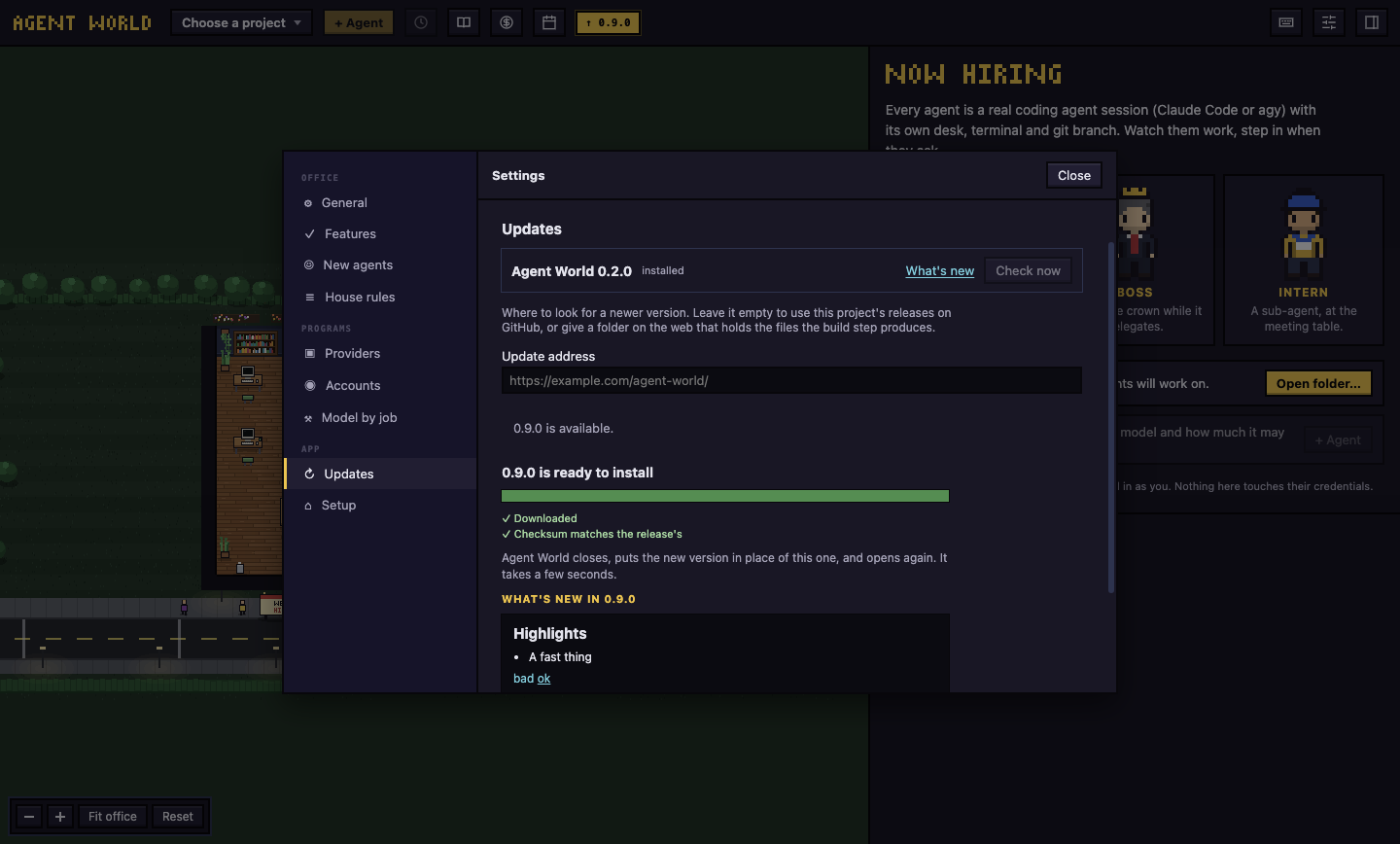
The first start after an update says so in a line under the top bar, with See what's new; it shows once.
To look now, press Check now on the Stable row. Agent World looks only at this project's releases on GitHub.
The two rows do not depend on which version you have. Check now always finds the latest stable release and Check on the Beta row the newest -beta.N, and each says how it stands to your version: a newer one is offered as Download; the one you have is said (You have 0.7.0.) with nothing to download; an older one is offered as Switch to 0.6.3, older than your version (on a beta, the stable row says Back to stable 0.6.3), with the line Switching replaces the version you have with an older one; settings made in it may not be read by this one. (on a beta going back: Going back replaces the beta you have; settings made in the beta may not be read by the stable version.). An older one is checked and installed like any other. The three-hourly look and the chip in the top bar stay as they were: a newer stable only, never an older one.
Beta
The Beta row looks at the project's early builds, the pre-releases tagged -beta.N, and takes the newest one, whether or not it is newer than the version you have. It looks only when you press its Check: the three-hourly look, the chip in the top bar and the Homebrew message are all about stable releases and never mention a beta. A beta shows its version, the day it was released, its notes and Download; nothing downloads until you press it, and the same checks as for a stable update (size, checksum, and the app being Agent World) apply. A copy installed with Homebrew is still told to use brew for stable (and nothing for an older stable), but gets Download for a beta.
Installing a beta on a stable app replaces it. Agent World does not step back to an older version by itself. To go back to stable from a beta, press Check now on the Stable row: it offers the latest stable as Back to stable, even while it is older than the beta; when the stable release is newer than the beta (a release is newer than its own betas, so 0.7.0 follows 0.7.0-beta.3) it is the ordinary update. Only a Mac downloads a beta into place; on other systems the row opens its release page.
When a newer version exists:
- A Mac build that is not signed with an Apple Developer ID (the build described in Getting started) puts a chip with an arrow and the version number in the top bar. Press it to open a small window under it, which also shows what is new in that version (the release's own text) before you download it: Download fetches the new version from this project's mirror or its GitHub release and shows how far it is; when it has been checked, Install and restart closes Agent World, puts the new version in place of this one and opens it again (agents that are working will be asleep after the restart; wake them to resume). While it downloads the chip shows the percentage. Settings > Updates shows the same state and the same buttons. If it fails, the window says why in a sentence and offers Try again, Show in Finder (when the file was kept) or Open the release page. How this is kept safe is below.
- A copy installed with Homebrew (the cask in the project's tap) gets the same chip, the same Download and Install and restart, and the same row in Settings. Homebrew keeps its own record of the version, which the in-app update does not change:
brew listandbrew outdatedmay still show the old version afterwards. That does no harm; runningbrew upgrade --cask hodkep/tap/agent-worldlater puts the same version in place again and brings its record up to date. Homebrew 6 and later does that only for a tap you have trusted (brew trust --cask hodkep/tap/agent-world, once on each Mac, as in Getting started); until thenbrew outdatedandbrew upgradestop with "Refusing to load cask … from untrusted tap", and the in-app update is not affected. - A build that can install itself (a Mac build signed with a Developer ID) downloads the update and says that it installs when you quit.
How an update of a build without a Developer ID is kept safe
The standard updater of a Mac app only replaces an app signed by the same Apple Developer ID, and this build has none, so Agent World does the replacing itself, with these limits:
- It fetches only from this project's GitHub release (
github.com, and the host GitHub sends release downloads on to, over https), at addresses it builds from the repository and the release's tag; it never takes an address from what the release says. It refuses a version that is not newer than yours and a file over 600 MB. - A build may name a mirror (a plain https address, set when the build is made) where the zip is tried first, because GitHub's release downloads can be slow on some networks. Only the file comes from there:
latest-mac.ymlis always read from GitHub, and the mirror's host is the only one allowed while the mirror is the source (a redirect elsewhere is refused). The mirror is dropped, once, for GitHub if it does not answer within 8 seconds, answers with anything but the file, sends the file somewhere else, falls under 150 KB a second over 15 seconds, or sends bytes that do not match; GitHub then has the last word. The mirror holds only the newest stable and the newest beta, so an older release comes from GitHub after one quick refusal. While it downloads, and when it is ready, the update says where the file came from (from the mirror, or from GitHub because the mirror did not answer)."updateMirror": falseinpreferences.jsonturns the mirror off; there is no button for it. A copy gains the mirror only after it has been updated once from GitHub. - It keeps the file only if its size and its sha512 are the ones in
latest-mac.ymlof the same release, whichever of the two it came from, and deletes it otherwise. - Before it replaces anything it unpacks the new app next to the old one and checks that it is Agent World (
dev.agentworld.app), is the version that was announced, and passescodesign --verify. The old app is kept as a backup and put back, and reopened, if any step fails; the reason is kept in the update log. - It asks for no password and writes nothing outside the folder Agent World is in and its own
updatesfolder. Your agents' data in~/.agent-worldis not touched. Where the app cannot change its own folder, or macOS runs it from a read-only place, it does not try: it keeps the download and says what to do.
One thing you may notice: macOS can ask again for access to folders such as Documents or Downloads after an update. An app signed without a Developer ID has a new identity with every build, so macOS treats each one as a new app; replacing the app by hand does the same. A Developer ID would stop that too.
What this does not give you: the checksum comes from the same release as the file, so trust rests on the security of the GitHub account that publishes the releases (two-factor sign-in is on), not on a signature from Apple. An Apple Developer ID is the better answer in the long run: with it the standard updater works with no code of ours in the way, and macOS itself checks who made the update.
Run setup again
Open Setup and press Set up again to repeat the first-run steps. See Getting started.
Next: Troubleshooting