Getting started
Install Agent World, get Claude Code ready, choose a project folder and hire your first agent.
What you need
- A Mac. The steps below are for macOS. There are no Windows or Linux installers yet.
- The Claude Code CLI, signed in. The setup screen can install it for you and open a terminal where you sign in. Agent World runs your own
claudeand never handles your login. - Optional: the Antigravity CLI (
agy), to hire agy agents beside Claude's. - Git: nothing to install. The app uses your computer's git when it has a working one and carries its own when it does not.
Install on a Mac
- Download the file for your Mac from the project's releases page on GitHub:
Agent-World-<version>-arm64.dmgfor Apple silicon (M1 and later),Agent-World-<version>-x64.dmgfor Intel. Apple menu > About This Mac shows which you have. If GitHub is slow for you, the same dmg is on the project's mirror: Apple silicon, Intel. - Open the dmg and drag Agent World into Applications.
- Open it. (With Homebrew,
brew tap hodkep/tap, thenbrew trust --cask hodkep/tap/agent-world, thenbrew install --cask hodkep/tap/agent-worlddo steps 1 and 2 and remove the quarantine mark, so you can skip the rest of this step. Homebrew 6 and later loads nothing from a tap that is not its own until you trust it: that is the middle command, needed once on each Mac. If Homebrew refuses, see Homebrew refuses the tap.) The app is not signed with an Apple Developer ID, so macOS blocks the first launch. You approve it once: see macOS blocks the first launch.
Walk through setup
Setup opens by itself the first time. Its left side lists six steps. Your agents is required; you can skip Project folder, Defaults and Features with Skip for now. Back and Continue move between steps.
- Welcome. Press Continue.
- Your agents. Lists the agent tools found on this computer, each marked Ready, Needs sign-in, Not installed or Installing, plus a Git row.
- To install a missing tool: press Install Claude Code (or Install agy (Antigravity)). A terminal appears in the step and runs the installer; the app looks again by itself when it ends.
- To sign in: press Open a terminal to sign in, sign in there, then press I have signed in: check again.
- If you have more than one tool ready, pick the one new agents use by default (Make default).
- Continue stays disabled until at least one tool is ready. Re-scan looks again.
- Project folder. Click one of your recent folders, or Open a folder… for any folder on this computer. Each card says
gitorno git, agents share the folder. - Defaults. How much a new agent may do alone: Ask first, Auto-edit, Plan first or Full auto. Two switches here: Tell me when an agent finishes, if I am in another app and Commit unfinished work to each agent's own branch when I quit.
- Features. Three switches, each with what it costs in extra text sent to the agent: Library and playbook, Track every request as a todo and Workflows. You can change them later in Settings, under Features (see Settings and updates).
- First agent. Optionally type a Name (otherwise one is picked for you), choose the Provider, and switch on Also hire a starter crew (Explorer, Test writer, Reviewer) if you want those three too. Press Hire and finish.
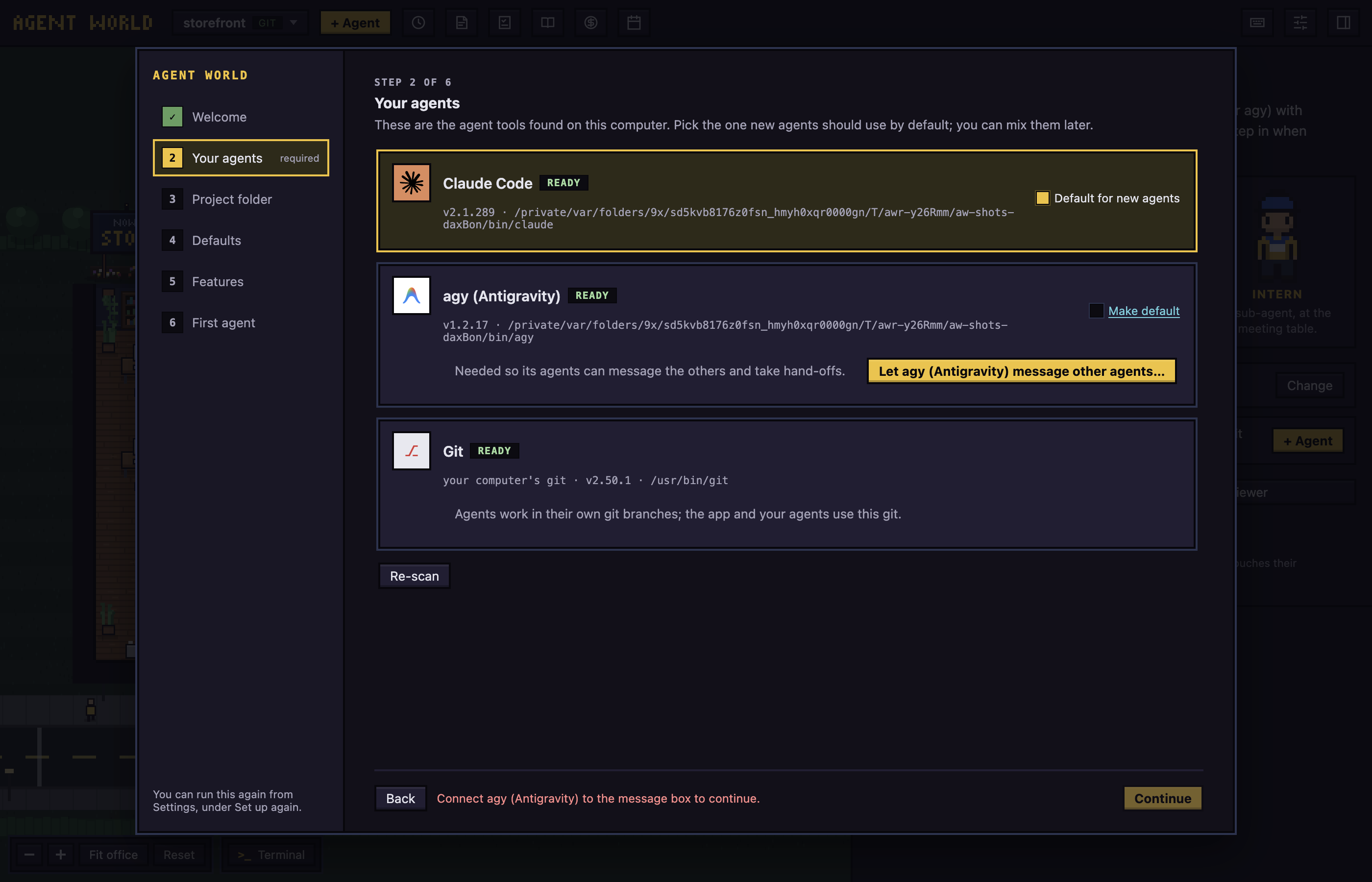
To run setup again later: open Settings, choose Setup, then press Set up again.
Hire another agent
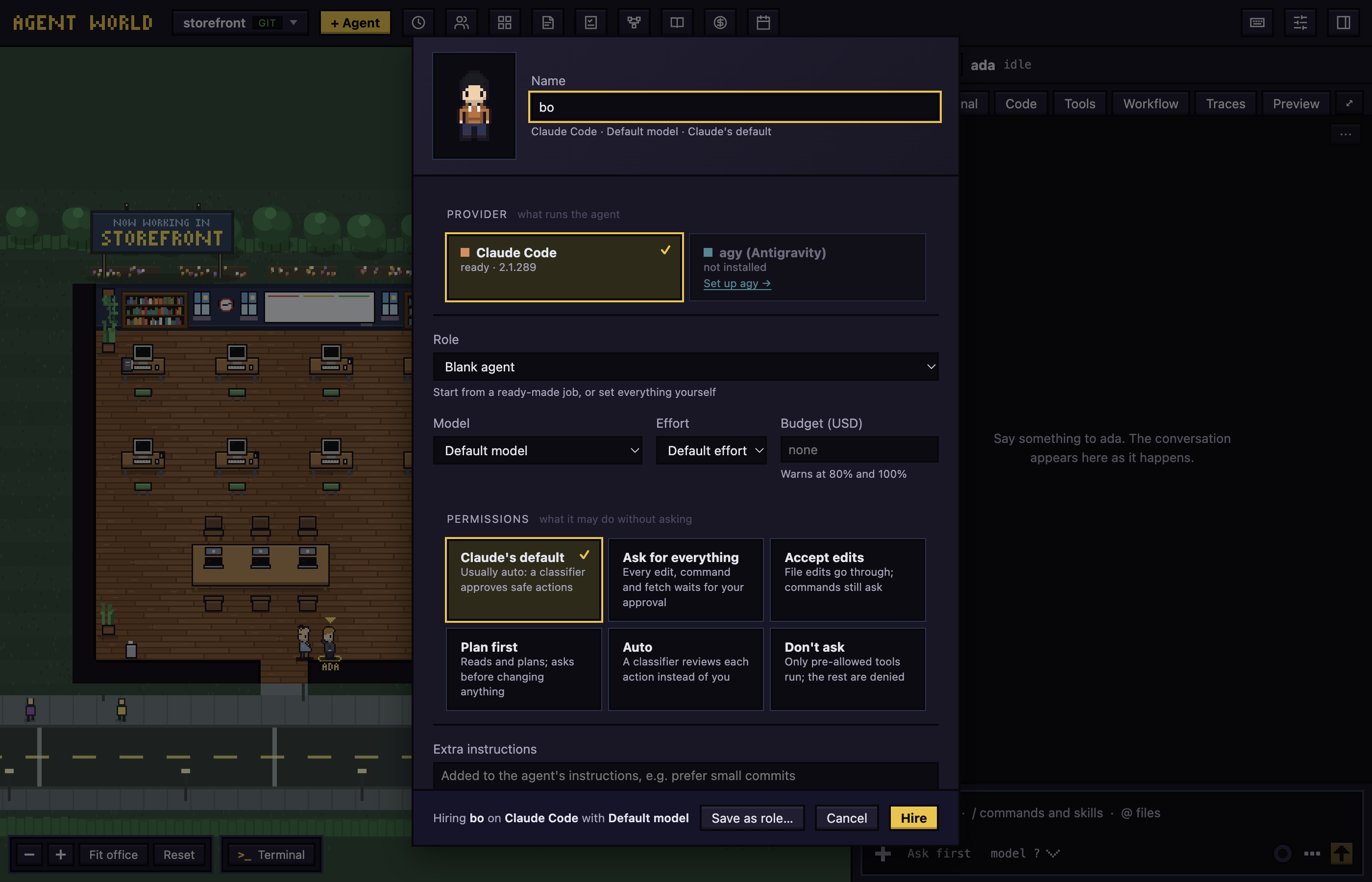
To hire an agent: choose a project folder, then click + Agent in the top bar (it is disabled until a folder is chosen). On the welcome screen, Open folder… chooses the folder and + Agent opens the same form.
The form fills in the choices from Settings, and you can change any of them for this agent:
- Name: leave it empty to get one picked for you.
- Provider (what runs the agent): shown only when more than one tool is ready.
- Account (which login it runs on): shown only when you have added accounts in Settings.
- Role: Blank agent, or a ready-made job, one of this project's agents, one of your Claude agents, or one you saved with Save as role…. Picking a role fills in the settings below.
- Model, Effort and Budget (USD). Budget (USD) warns at 80% and 100%, and is offered for Claude Code agents only. For agy there is no separate effort: it sets thinking inside the model's name.
- Permissions: what it may do without asking. For Claude Code: Claude's default, Ask for everything, Accept edits, Plan first, Auto, Don't ask. For agy: agy's default, Ask first, Accept edits, Plan first, Skip permissions.
- Extra instructions: added to the agent's instructions.
- Let it use Chrome (Claude Code only) and Work in my folder directly (no branch).
- Branch from: appears for a git repository that has commits.
Press Hire. The character walks into the office.
Where the agent works
In a git repository that has at least one commit, each agent gets its own worktree on a branch named aw/<name>, under ~/.agent-world/worktrees/, started from the branch you choose in Branch from (by default the folder's own).
The agent works in the folder itself, with no branch, in three cases: the folder is not a git repository, you ticked Work in my folder directly (no branch), or the repository has no commits yet (see troubleshooting). Several agents in one folder can overwrite each other's files.
Next: The office