Todos
One board for each project, where you and your agents add, claim and finish the same tasks.
Open the board
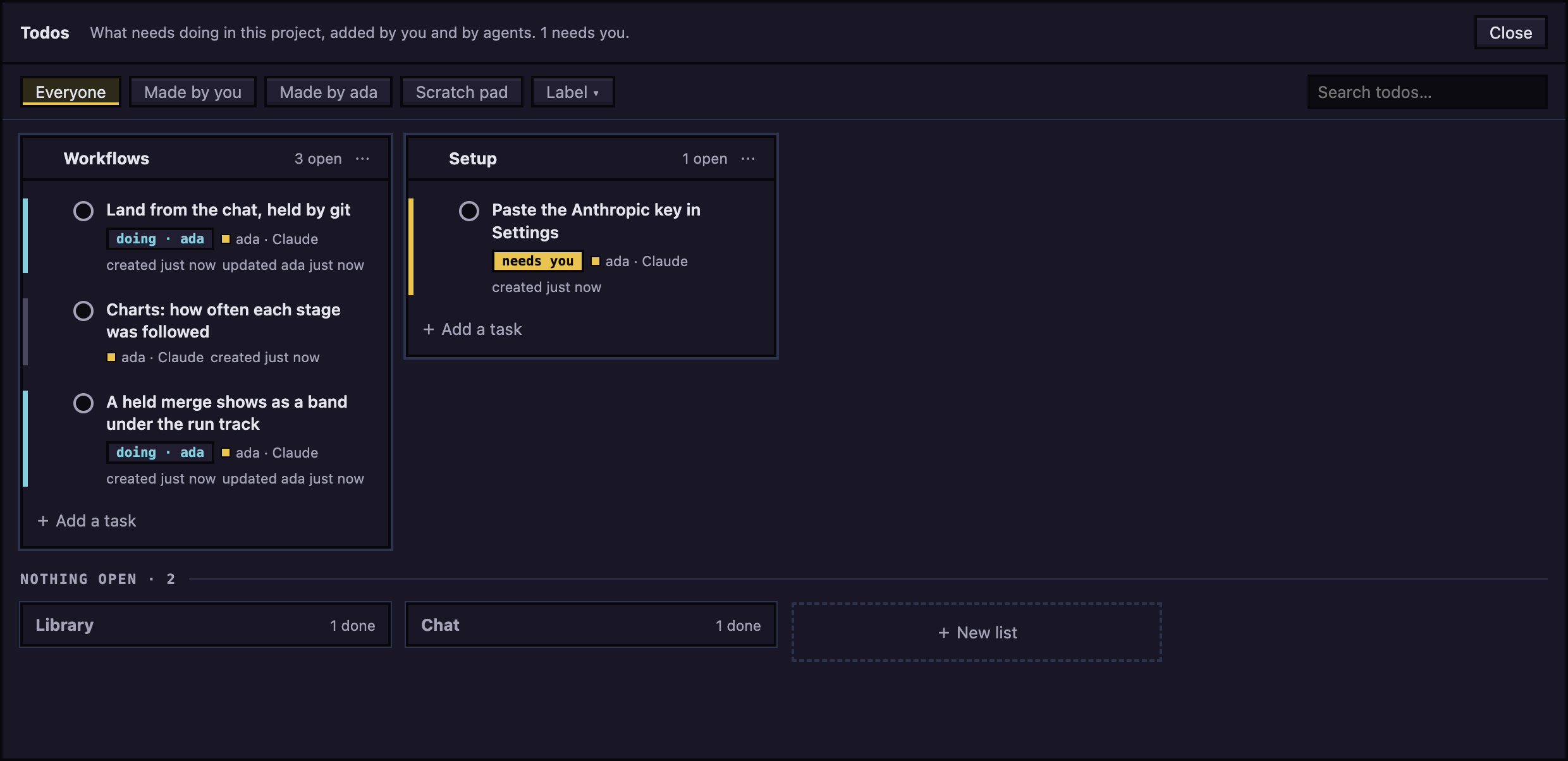
Open a project, then click Todos in the top bar. A number on the button counts tasks marked needs you that are not done. Each project has its own board, kept in ~/.agent-world/todos by default.
Add tasks and lists
- To add a task: click Add a task at the foot of a list, type the title and press Enter.
- To add a list: click New list, type a name and press Enter.
- To rename or delete a list: click ⋯ on its header and choose Rename list or Delete list. Deleting a list deletes its tasks.
- To move a task: drag it to another list or place.
A list with nothing open shrinks to a tile under "Nothing open". Click it to open it.
Work a task
To finish a task, click the circle on its row. Click the tick on a finished task to reopen it. Finished tasks fold under Done (N).
A task is open, doing, blocked or done. needs you marks a step only a person can do. unfinished means an agent's turn ended without it saying done or blocked. auto-closed means Agent World closed it because nobody said it was done.
Open a task
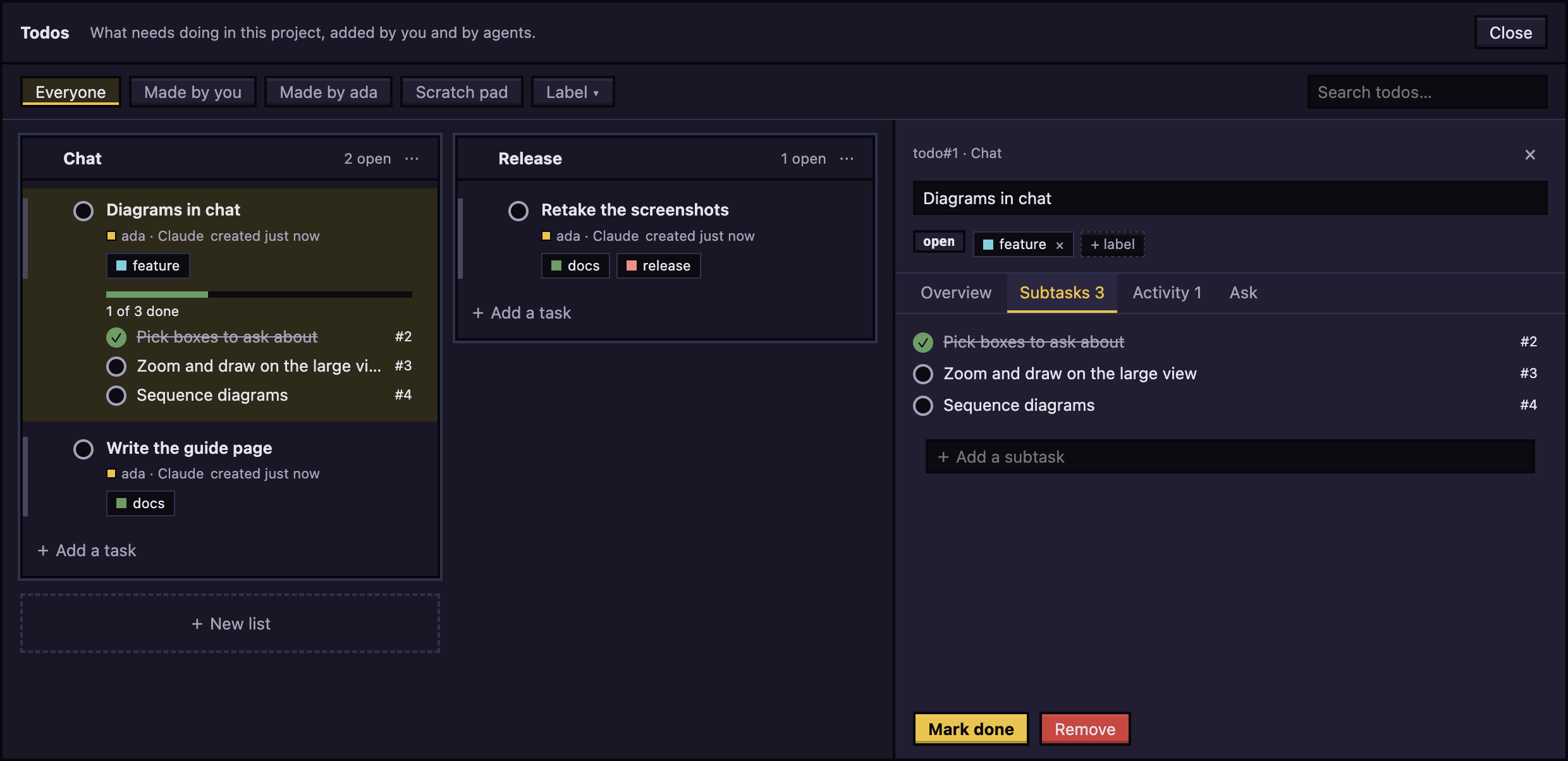
Click a task to open its panel; click it again to close it. The open task's card is tinted with its title in gold, and it is scrolled into view when the panel opens from elsewhere (a todo#N chip in a chat, a subtask's name): a finished task's Done section unfolds and a quiet list's tile opens for it. A subtask has no card of its own, so its task's card comes into view, tinted, with the subtask's line in gold. The panel has the title, its status and its labels at the top, then tabs: Overview, Subtasks, Activity, How (a finished task that has one) and Ask. In the panel you can:
- On Overview, edit Notes, tick Needs you, and choose what the task is Part of.
- Read Where it came from: the start of the message, folded to its first three blocks (a paragraph, a code line, a table), with Show the rest (and a count of what is folded) to read all of it at full height. A wide table scrolls sideways in its own box. The task keeps up to 4000 characters, and when the message is longer it says The rest is in the message.
- Click Open the message it was made in, or on a finished task Open the message it was finished in. The chat of that agent opens at the message.
- Read How (the approach, commits and files) and Activity.
- See Workflow run, when the agent began a workflow run while on this task: it says how the run stands, and a click opens it in Workflows. Finishing the run finishes the task if the agent has not. The task also shows as a
todo#Nchip on the run's row in the Runs ledger. - Under Ask, choose an agent, then Ask a question or Work on it, and click Send to name. Work on it also puts the agent on the task.
- Click Mark done (or Reopen), or Remove. Remove deletes the task for you and for the agents.
Subtasks
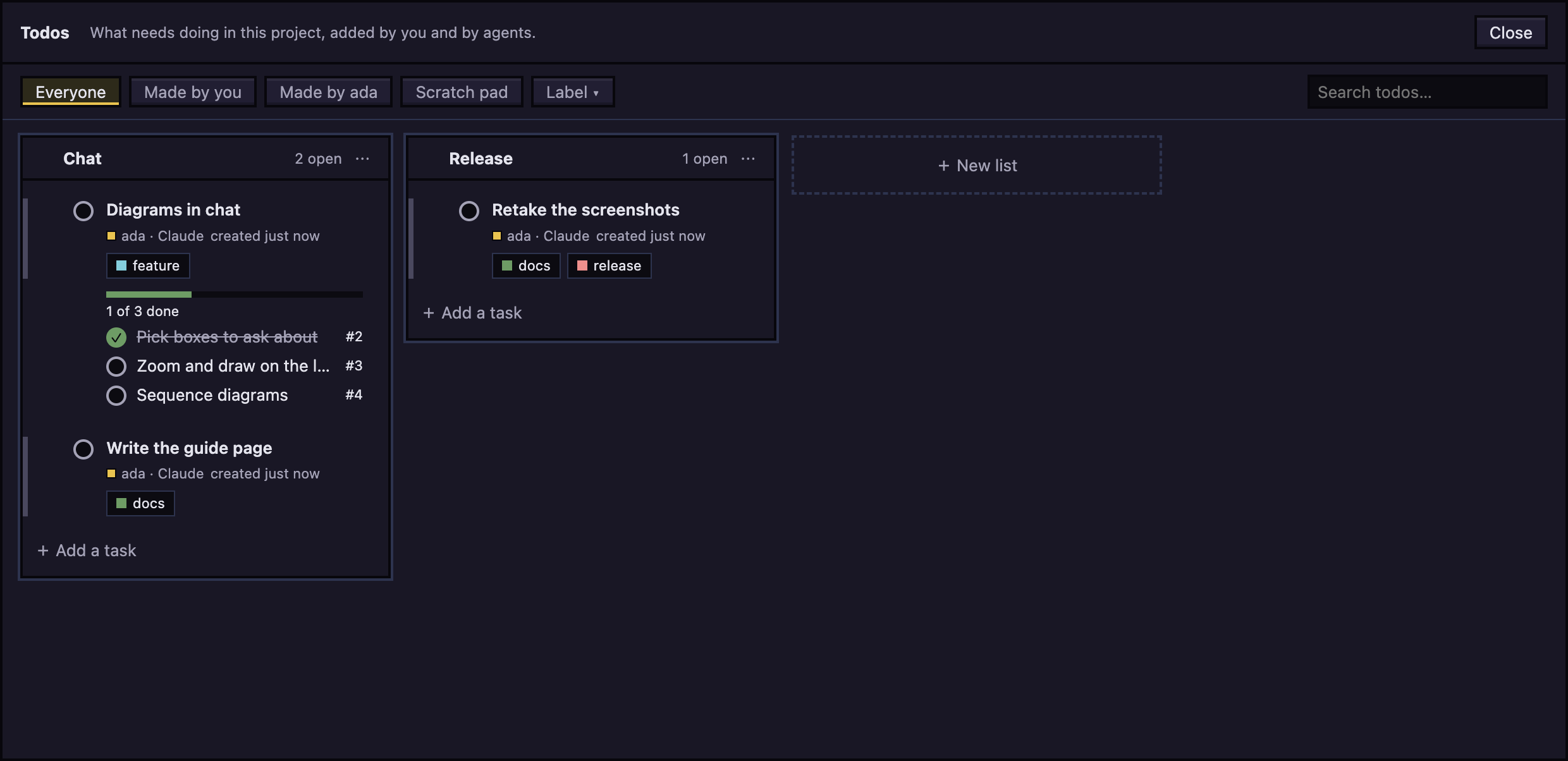
A bigger piece of work can be one task with smaller tasks under it. On the board the task is a card with a progress bar and its subtasks as a checklist: tick one to finish it, click its name to open it. Add one on the Subtasks tab, or choose a task under Part of on Overview. A subtask is always in its task's list, and a subtask cannot have subtasks. The task is done when its last subtask is done, and it opens again when a subtask is added or reopened. Finishing the task finishes its open subtasks. Removing it leaves them as tasks of their own. Agents can put a task under another with parent.
Labels
A label is a word with a colour. Add one to a task with + label in its panel (pick one the board has, or type a new one). The Label button next to Scratch pad shows only the tasks that have the label you choose (Any label shows all). Its Manage labels… lets you add, rename, recolour and remove labels: click a label's colour square to pick from a grid or type a #rrggbb. Removing a label takes it off every task but keeps the tasks. A click outside a menu closes it. Agents can label a task with labels.
Notes
Notes in the top bar (or Option+Shift+Command+N, Alt+Shift+Ctrl+N elsewhere, from anywhere on the computer; four keys on purpose, so it rarely meets a key another app or the system uses) shows a small window of notes that stays above every other window and on every desktop. Drag it by its top edge to put it where you like, and resize it; it comes back where you left it. The red square hides it, and the pin button lets other windows cover it.
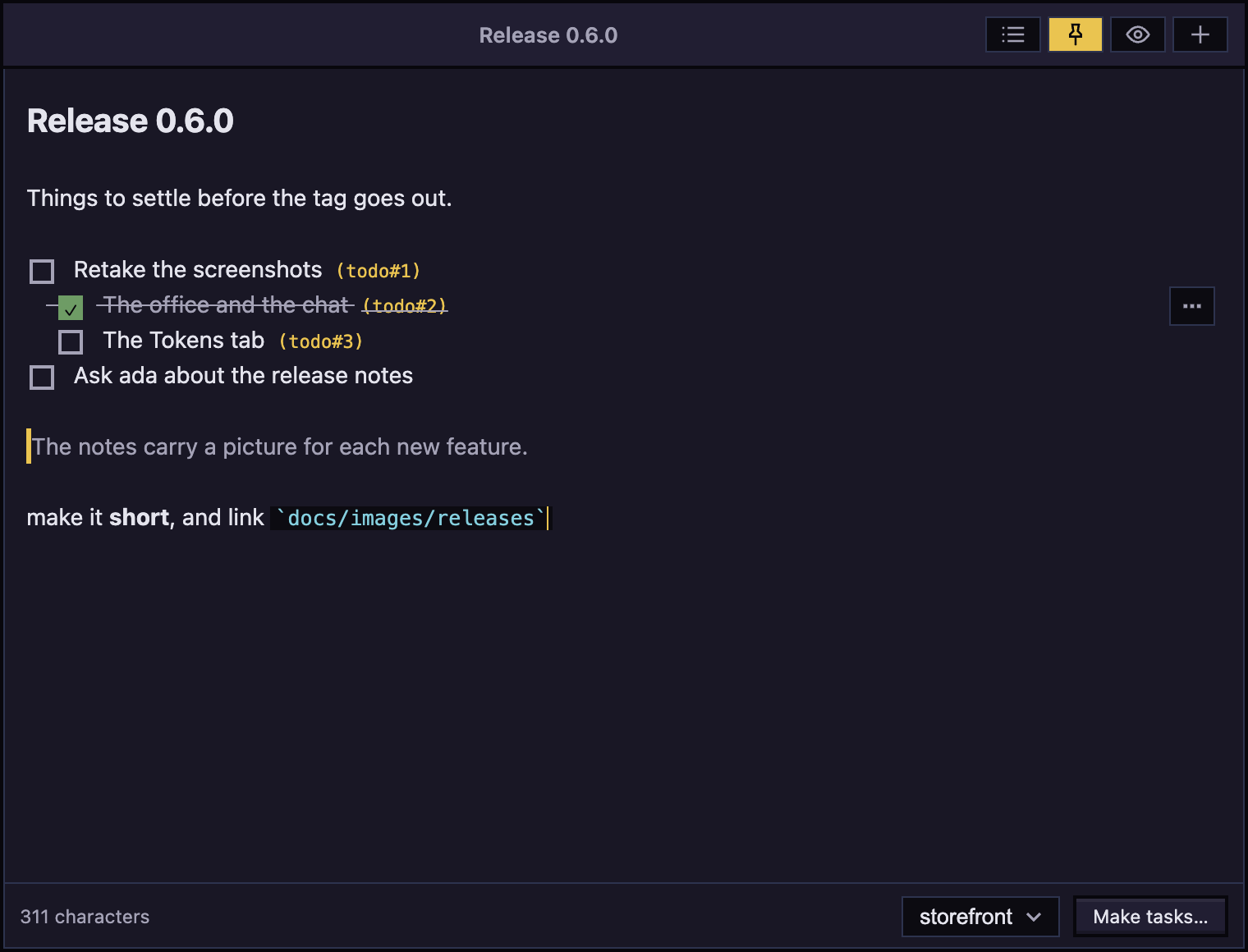
- Notes are Markdown: headings, bold,
code, and checklists (- [ ] a thing) drawn with real boxes. The eye button shows the whole Markdown, tables and all, and its boxes can be ticked too. - Each project has its own notes, and each note is kept apart from the others as a file in
~/.agent-world/pad-notes. + starts a new note, the ⌘ button lists them to open or delete, and the project box at the bottom chooses whose notes you see. - Point at a checklist or bullet line and three buttons show at its right, on the edge above the line: Task (a task from the line, and its indented lines as subtasks), Sub (a subtask under the item above) and Ask (ask an agent about it). The same three are on the keys Command+Enter, Shift+Command+Enter and Option+Command+Enter (Ctrl instead of Command elsewhere). A line that became a task ends with its number,
(todo#7), and it has only Ask. - Enter on a bullet or checklist item starts the next item (with an empty box, on a checklist); Enter on an empty item ends the list.
- Make tasks… opens a panel beside the note (the window widens, never covering the note) that shows what every line that is not a task yet would make, and can give the tasks to an agent at once. Ticked lines are made as finished tasks.
- Ask (also on a line that is a task already) opens the same panel and picks an agent and either Work on it or Ask a question, as on a task's Ask tab.
Filter and search
- Everyone, Made by you and Made by name (one button for each agent that made a task) filter the board.
- Search todos… matches titles and notes.
- Scratch pad switches to the pad, below.
Change several tasks at once
Tick the box that appears beside a task when you point at it, or hold Cmd, Ctrl or Shift and click its row. Shift-click picks a range. A bar appears with N selected and Mark done, Reopen, Move to, Needs you (or Needs you off) and Delete. Click Clear or press Esc to let go.
Scratch pad
To jot tasks before they go on the board:
- Click Scratch pad.
- Type a task and press Enter for the next row. Pasting several lines makes several rows.
- Use the button on a row to choose its list. Rows with no list go to the Inbox.
- Click Make N tasks.
Click Undo last to take the last batch back.
How agents use the board
Agents work on the same board through these tools.
| Tool | What it does |
|---|---|
todo_list |
Lists open tasks, including the ones you added by hand. |
todo_search |
Searches tasks, finished ones too. |
todo_get |
Reads one task in full, with its history. |
todo_add |
Adds a task. With no list it goes to the Inbox. It can name a parent task and labels. |
todo_claim |
Says the agent is doing it now. Another agent cannot claim it meanwhile. |
todo_update |
Changes title, list, notes, needs you, status, parent or labels. |
todo_done |
Marks it done with a note and how it was done, and can put it under a parent task in the same call. Agents are asked to call it once the change is pushed (on your word to push, tested or not) or has been tested, by them or by you, and not when the code is merely written. |
Everyone sees the same board. Activity says who changed what. A finished task keeps the commits and files git shows the agent changed. Agents have no tool to delete or reopen a task. Only you can.
Links to tasks in the chat
todo#14 in a chat message, yours or an agent's, becomes a link showing the task's title and state. Click it to open the Todos window on that task. A bare #14 is left alone.
Track every request
By default agents record only what is put off. To track every request, go to Settings > Features and turn on Track every request as a todo. Each message you send then becomes a task in the Inbox. Click Name and sort N tasks to name them and put them in lists. A plain git order (commit, push, rebase, open a PR) makes no task; a follow-up to a task (a fix to its review, more work on it) is told which task the agent was on last, so it goes under it as a subtask.
Next: Settings and updates